
Background
When a meeting takes place via Teams, the messages typed in the chat window during the meeting will also be displayed on the Chat tab in Teams after the meeting. This means you can view the chat history later and, if necessary, continue the conversation outside of the meeting. The chat history also allows you to join a recurring meeting.
However, guests who are invited to attend one instance of a recurring meeting must be able to join that meeting, but they should not be able to access the chat history later on. Restricting access to the chat history is important from a data protection perspective. Besides, it can be annoying to receive frequent notifications for conversations that do not concern you. This tip guides you through the steps of removing a guest from a Teams meeting chat and leaving a group chat yourself.
Inviting guests
When you invite a guest to a meeting in Teams, you can adjust the rights so that he or she will not be able to access the chat history after the meeting.
To adjust the settings that apply to guests who attend a recurring Teams meeting, click the Participants icon on the top right corner of the chat section. Before the meeting, the host can temporarily add a guest to the chat by clicking the Participants icon and determine the visibility of messages by selecting one of the following options:
- Don’t include chat history
- Include history from the past number of days:
- Include all chat history
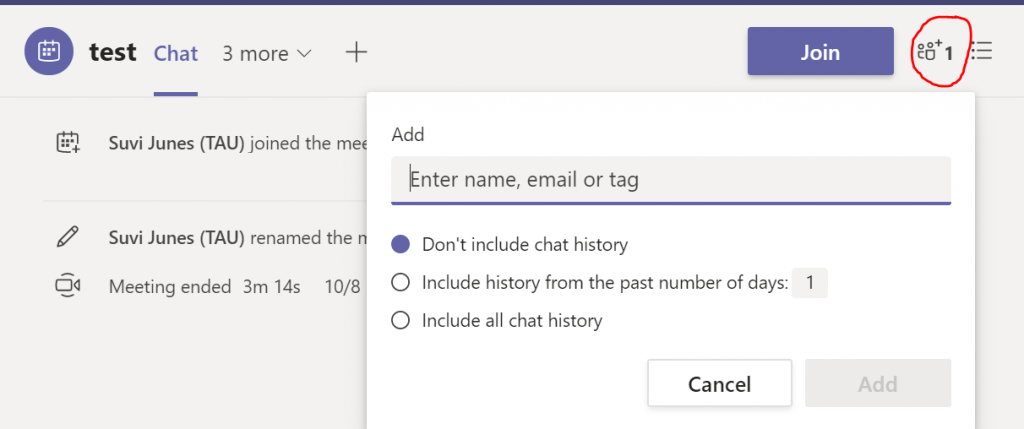
By default, a guest who attends a recurring meeting will not be able to access, for example, earlier meeting minutes. If the guest needs to be able to view the minutes, he or she must request access separately.
Removing guests
After the meeting, the host must remove guests from the group chat. To do this, click the Participants icon on the top right corner of the chat section.
A window will appear to notify you that the removed participant will still have access to the existing chat history up until you remove his or her from the meeting room: “Remove <person> from the conversation? They’ll still have access to the chat history”.
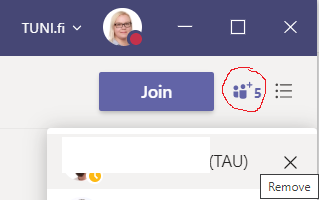
After you click Remove, the removed participant will still be able to access the conversation that took place during the meeting but no future conversations.
Leaving a group chat yourself
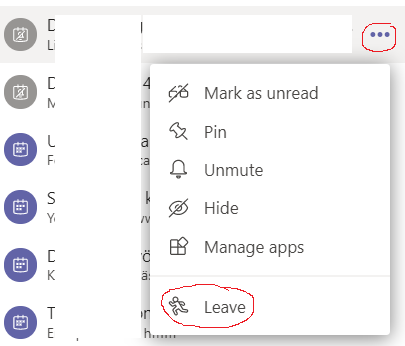
If you attend a recurring meeting as a guest, you can leave the chat yourself: click on the three dots next to the meeting name and select Leave.
Comments
0 comments
Please sign in to leave a comment.