
1Password is a password manager that gives you access to all of your other passwords and confidential information. It should be the only "one password" you need.
If you have been contacted by the IT department to set up an account, this article applies to you.
In addition to your own private work vault, our EN instance of 1Password has department specific vaults meant for sharing accounts and passwords with others on your team, if necessary.
Topics in this article:
- Learn 1Password
- Install the software
- Import passwords
- Adding items to a vault
- Moving items to a different vault
- Watchtower
- Free family account
- Use Windows Hello to log in
Learn 1Password
This 13-minute video gives you a good overview of how to use 1Password. It covers the following:
- Intro
- Vaults
- Shared Vaults (but we create a separate named vault for your team)
- Setup 1Password Apps
- Setup 1Password for Mac (same steps for Windows)
- Save login details
- Watchtower
Install the software
1Password.com is the primary management app for your account that you can log into from anywhere. The "apps" are system-specific and provide an easier or quicker interface for your 1Password.com info. Beyond just logging on to the website, you should install the computer and browser apps on your work computer, and the mobile app on your phone to get all of the features and ease-of-access of 1Password.
Below is a breakdown of the additional apps available for 1Password:
- 1Password.com
- Computer Apps (should be installed)
- Windows
- Mac
- Browser Apps (should be installed)
- Chrome
- Safari
- Edge
- Firefox
- Mobile Apps
- iOS
- Android
- Computer Apps (should be installed)
Use https://easternnational.1password.com/apps to install the apps you need to easily access your info an any device.
Import passwords
If you stored your passwords in your browser or in another password manager, there should be an export option.
- Use that option to export your passwords to a CSV file. Save the CSV file to a memorable spot on your computer
- In 1Password, click on your profile icon in the top right, and select Import
- Follow the prompts to select the CSV file and import your items. *NOTE: If you used another password manager, 1Password may prompt you to download a desktop app to pull in your data from the old software and match its objects to 1Password data objects.
Adding items to a vault
Automatically
The simplest way to add items to your vault is to visit the site, enter your username and password, but before you click the submit/login button, click on the 1Password icon and select "Save in 1Password" like the image below. It will prompt you to give the item a name and save your credentials.
Manually
If you want to manually add items, click on the 1Password icon in your browser extension bar, and select the "+ New Item" button like the image below.
| You will then be prompted to add one of these options to the right. "Login" is the most common for any website, but you can add many other important things like a work credit card, passport, driver's license, etc. |
Moving items to a different vault
If you have multiple vaults and you need to move an item from one vault to another, simply select an item
|
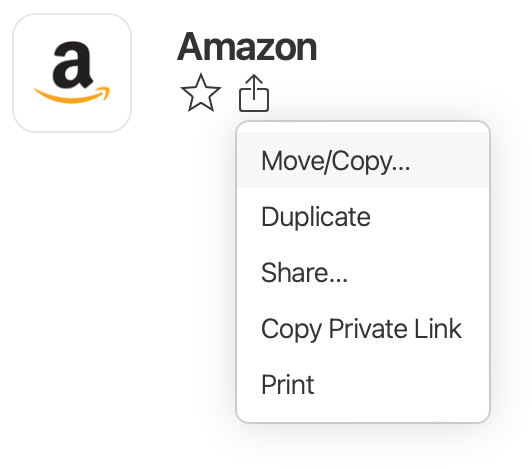 |
 and choose Move/Copy.
Create an Identity item
An Identity item is a type of 1Password item that help fill in your personal information in online forms that request your name, address, title, email, etc. By default, 1Password creates one for you. You can add to or edit the information in the existing one, used for work, but it may also benefit you to create a secondary one, used for home/personal information like below:
Watchtower
This is a free tool built into 1Password that helps find weak or compromised passwords in your vaults. It tells you exactly how strong your passwords are and which passwords and accounts may have been involved in a breach. It's important to check this often.
Go to https://support.1password.com/watchtower for more info.
Free family account
When you’re part of a team that uses 1Password Business, like we are at Eastern National, you get a complimentary 1Password Families membership, which you can share with up to 5 family members.
To redeem your free membership, link your family account to your business account. Only your subscription status will be linked. No other information is shared. More information found at https://support.1password.com/link-family.
Use Windows Hello to log in
As of Windows 10, Windows Hello is a way for your camera to automatically recognize you or by entering a PIN so you don't have to enter your computer password as often. To activate it, see this article we created.
1Password allows you use Windows Hello as to get access to your account so you don't have type your password as often either. It requires that you install the Windows version of 1Password. See https://support.1password.com/windows-hello for instructions to set it up. It's very easy.
Comments
0 comments
Please sign in to leave a comment.