
If you ever had trouble launching the Journal in Store Operations Manager, or reprinting a receipt in the Point-of-Sale/Cash Register application, it is likely because Windows does not have a default printer defined, or the current default printer is NOT connected. It's an easy fix. Connect your default printer, or just change the default printer to a different, active printer. Do do that, follow the steps below for your version of Windows:
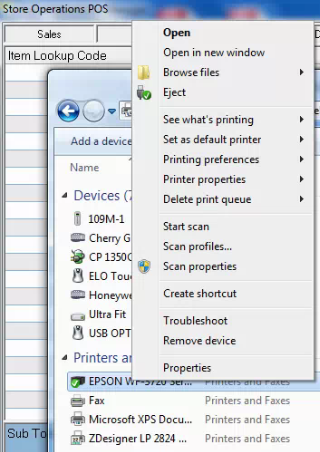
Windows 7
- Click the Windows icon in the bottom left corner of your screen and type "Printer" in the Search box
- In the results, select Devices and Printers
- In the window right-click on any printer, and select Set as default printer
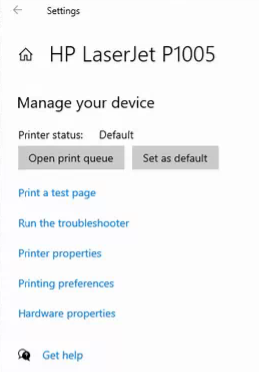
Windows 10
- Click the Search icon in the taskbar and type "Printer" in the Search box
- In the results, select Printers & Scanners
- In the window click on a printer and select the Manage button
- In the next window click the Set as default button at the top
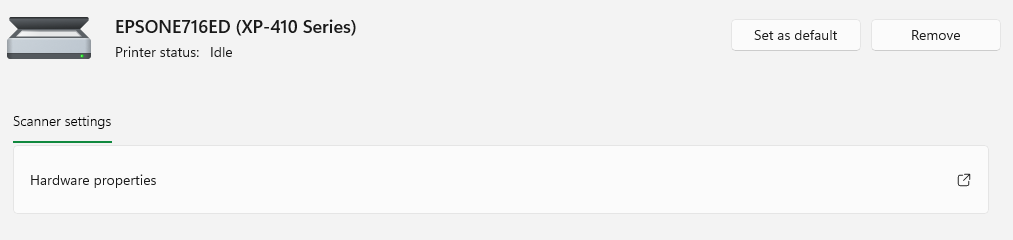
Windows 11
- Click the Search icon in the taskbar and type "Printer" in the Search box
- In the results, select Printers & Scanners
- In the window click the arrow to the right of any of the printers
- In the next window click the Set as default button in the top right
Comments
0 comments
Please sign in to leave a comment.